Fettle: inspections and maintenance for hospitality properties
- Android and iPhone, installed from the browser
- Works without signal
- Built and hosted by CapeFrisco
Why we built it
Maintenance work gets lost between chat groups, paper and spreadsheets
In many resorts and villa businesses, a problem is reported in a chat group, written on a paper job card or added to a spreadsheet. A day later nobody is sure who is fixing it or whether the job is finished.
Guest damage is often repaired and never billed to the guest. Owners phone or email the office to ask about their property, and someone has to find the answer.
We built Fettle for a resort that manages villas and apartments for their owners, and it is in use there today. We now offer it to other hospitality businesses.
The problems Fettle is built for
- Jobs reported in a chat group and then forgotten
- Nobody responsible for a job by name
- Guest damage that is repaired but never billed
- Owners phoning the office for updates
How a job works
Every job follows the same steps, from the first report to the bill
Each problem becomes a numbered job card. Every change is kept in the job's history, so a manager can see who did what and when.
Job card stages
- Logged
- Assigned
- In progress
- Awaiting parts
- Done
- Verified
- Billed
Report
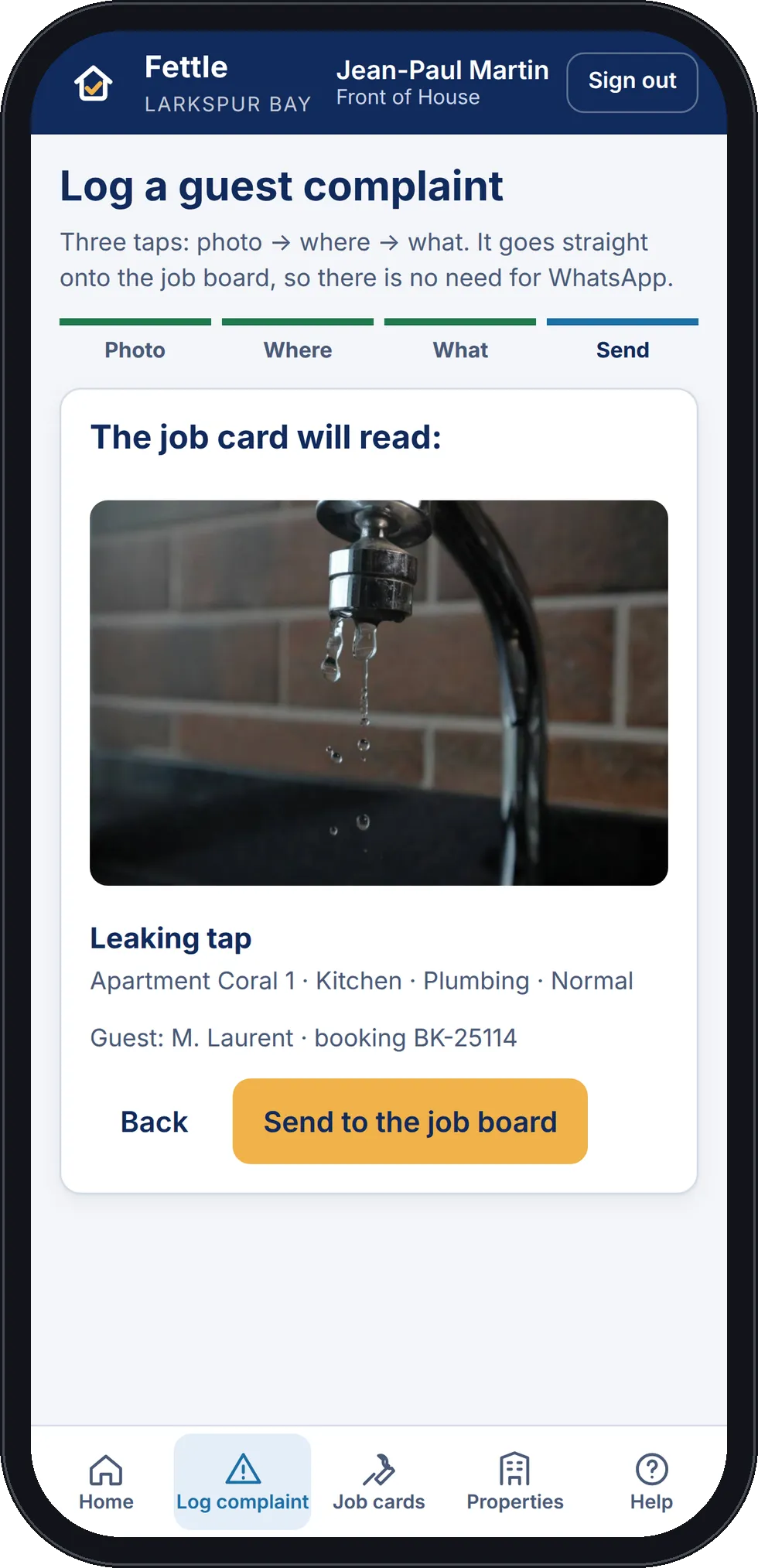
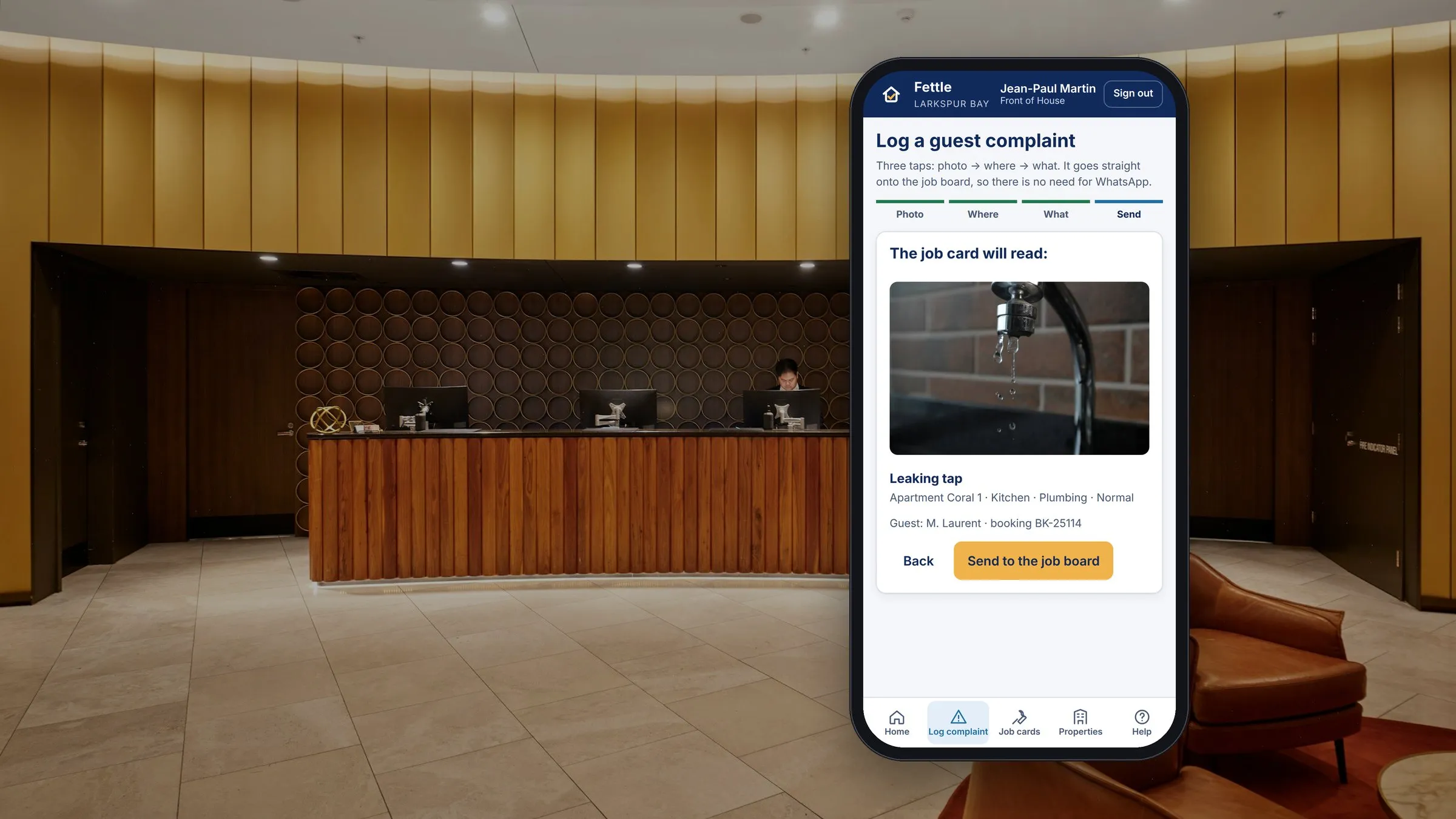
Staff take a photo, choose where the problem is and say what it is. Front of house adds the guest's name and booking reference.
Assign
A manager assigns the job to one named person and sees how many open jobs each person has. A job cannot start until it is assigned.
Fix
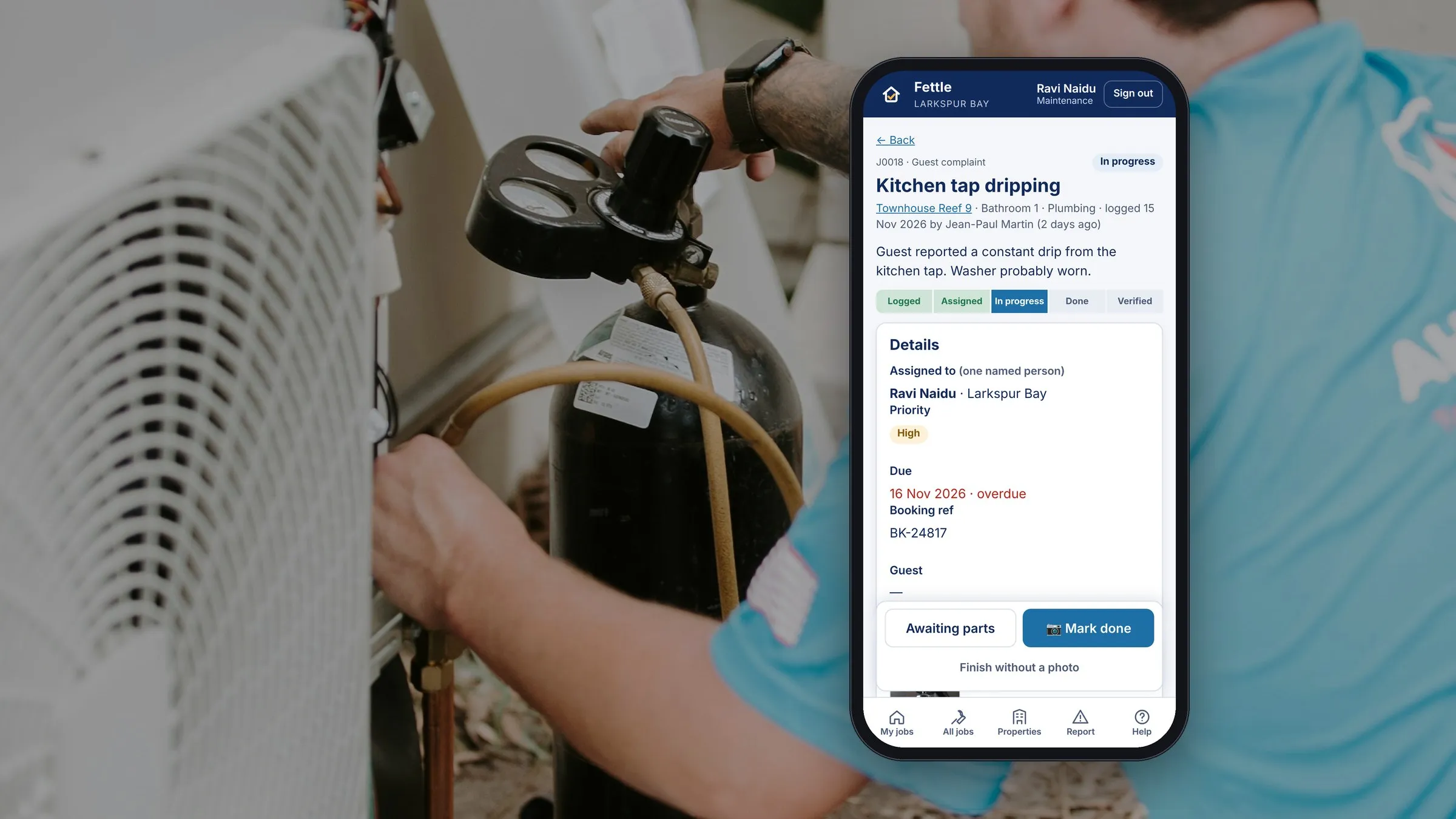
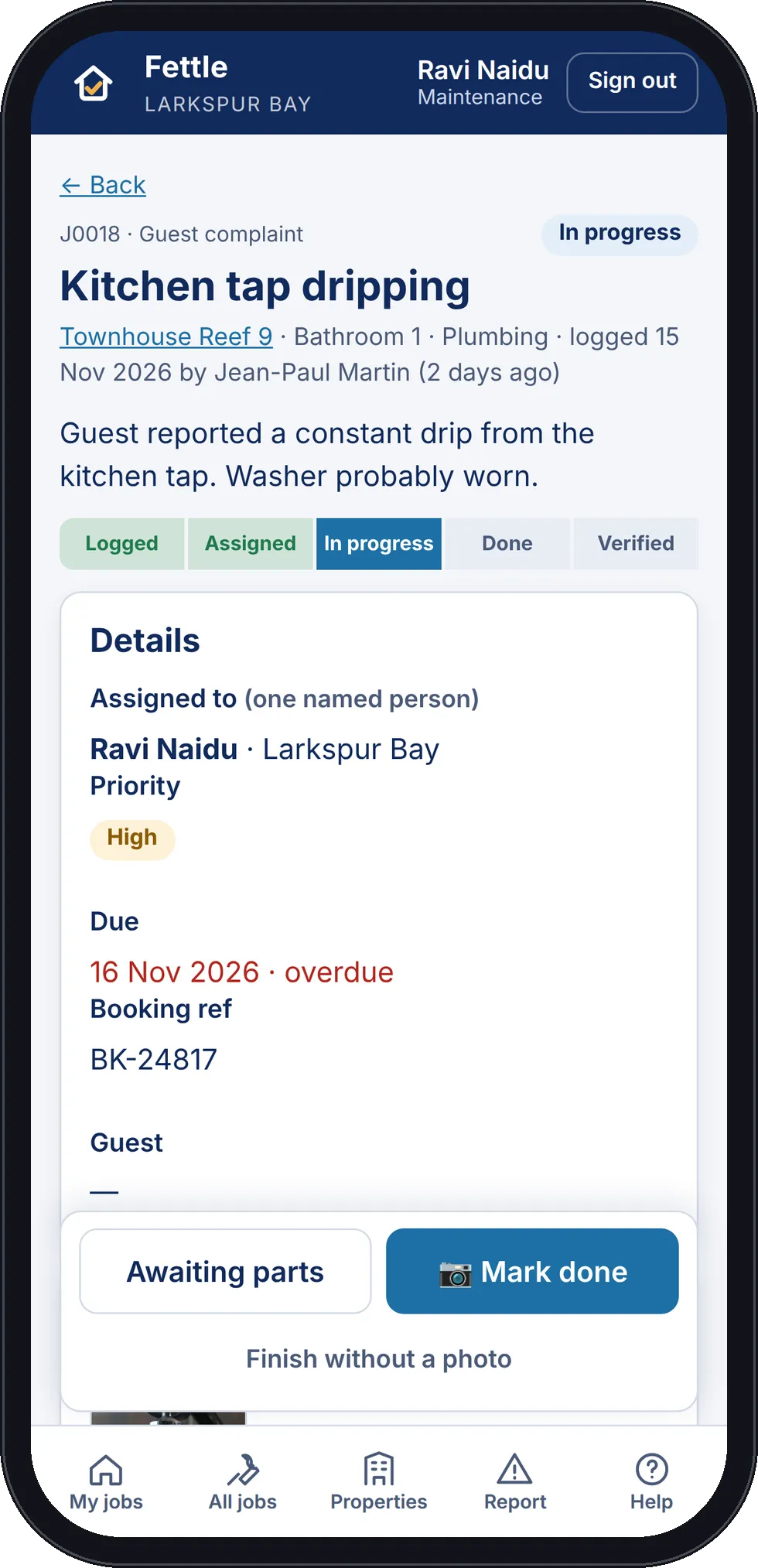
The technician or contractor updates the job and adds the parts and labour. Marking the job done opens the camera for an after photo.
Verify
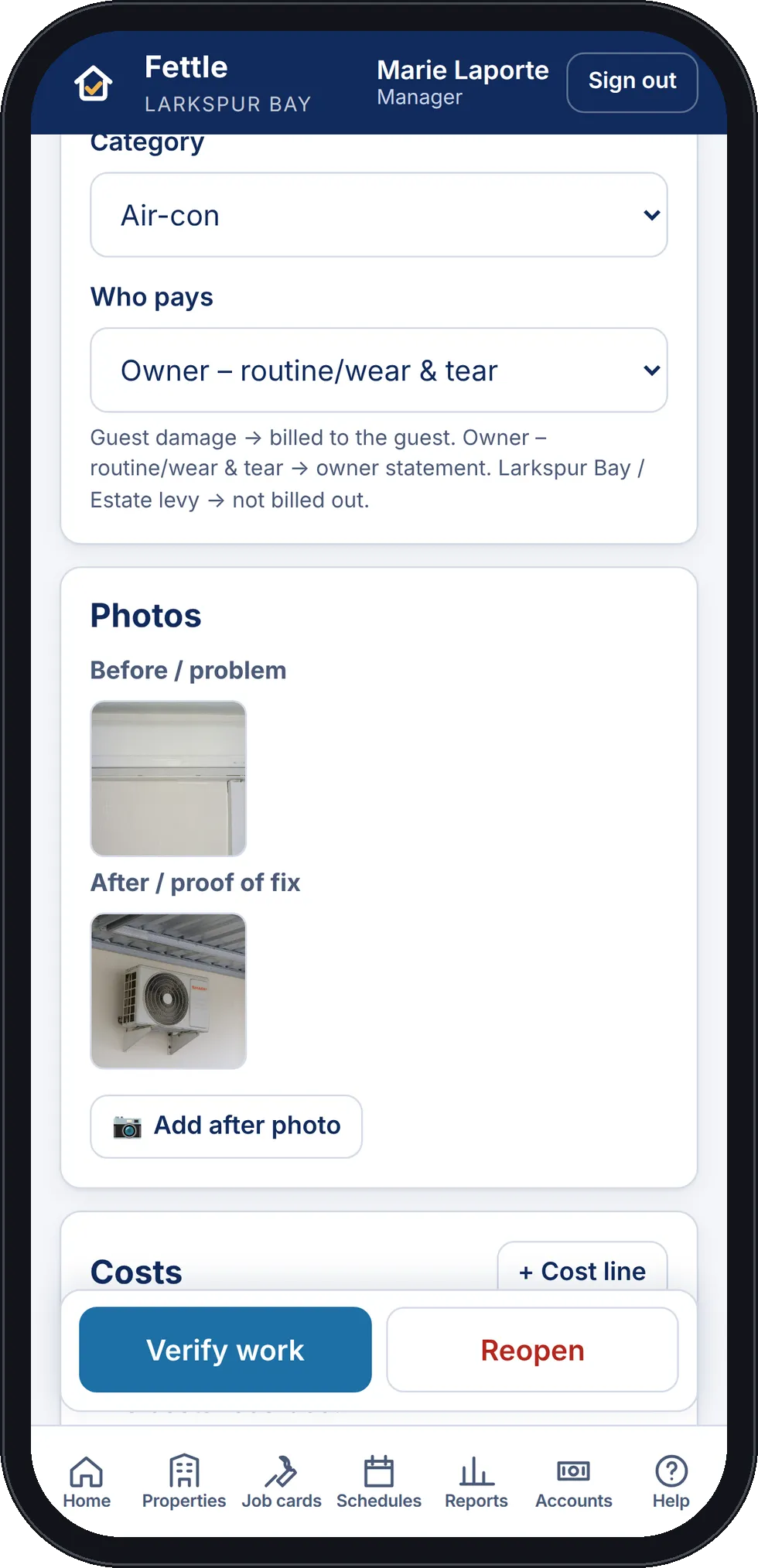
A manager compares the before and after photos, then verifies the work or reopens the job.
Bill
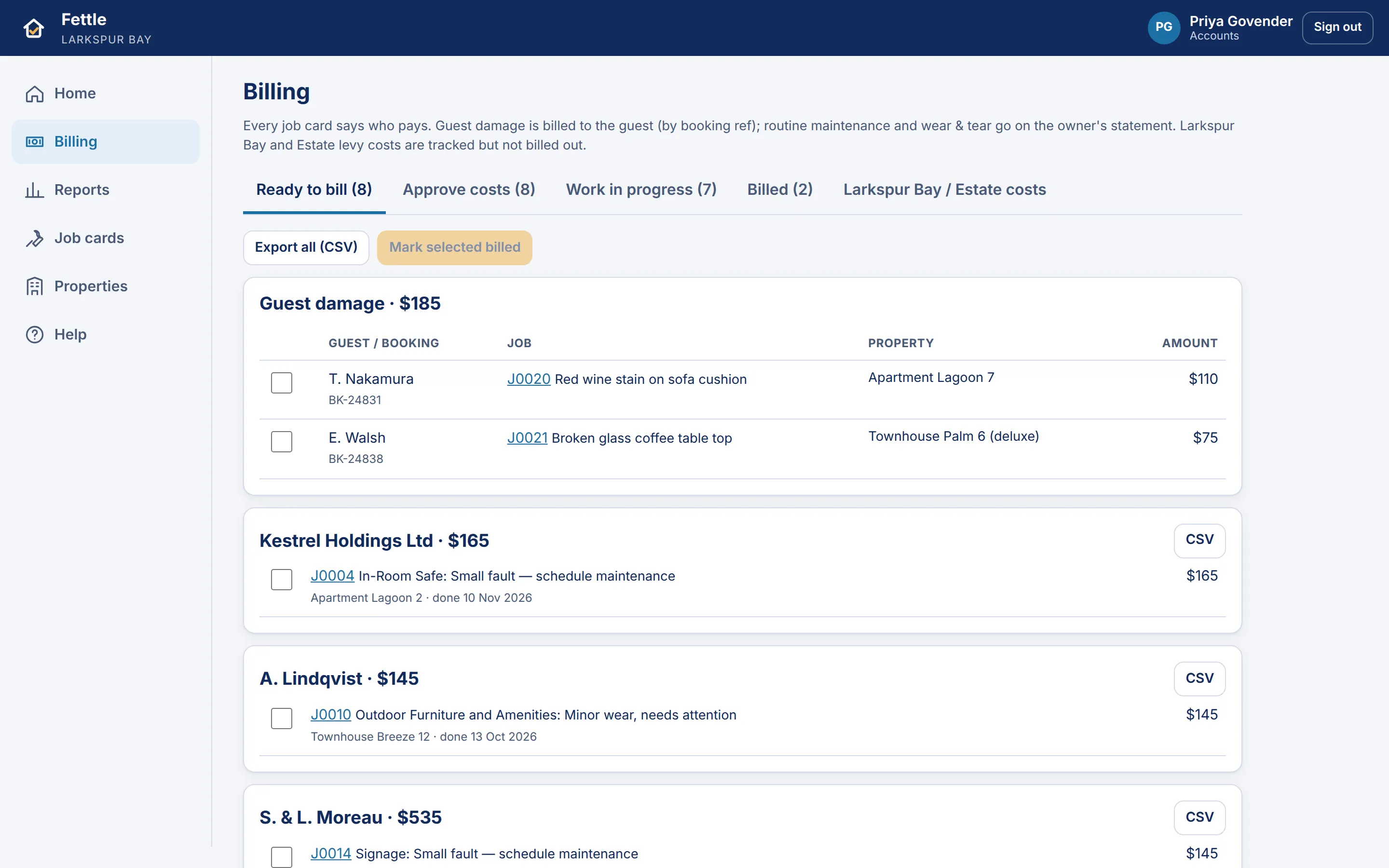
Accounts approves the costs and bills the job to whoever pays for it.

Inspections
Inspect every property to your own standard
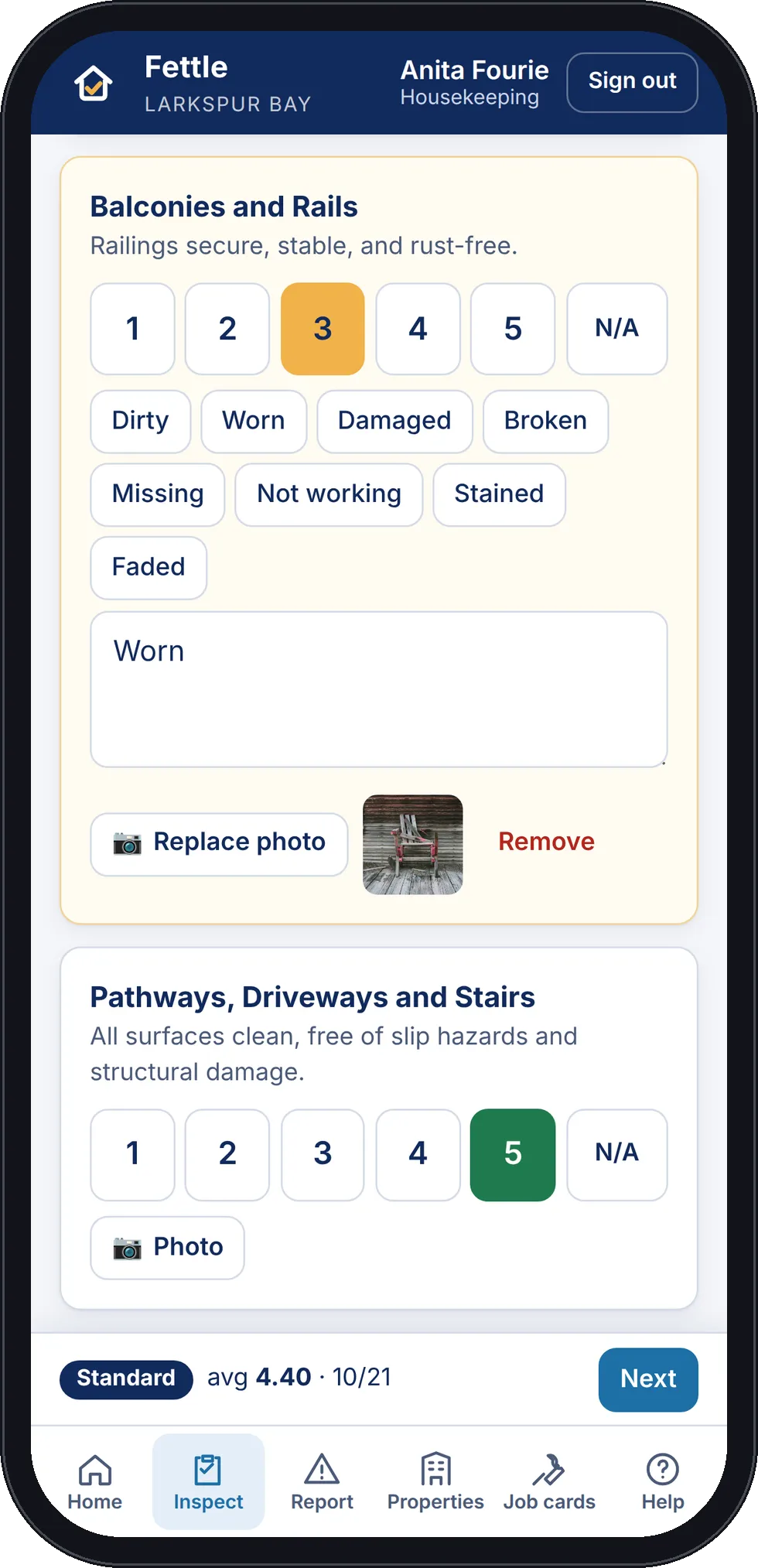
Housekeeping and inspectors score each item from 1 to 5 on their phones. A low score needs a reason or a photo, and can open a job card straight away.
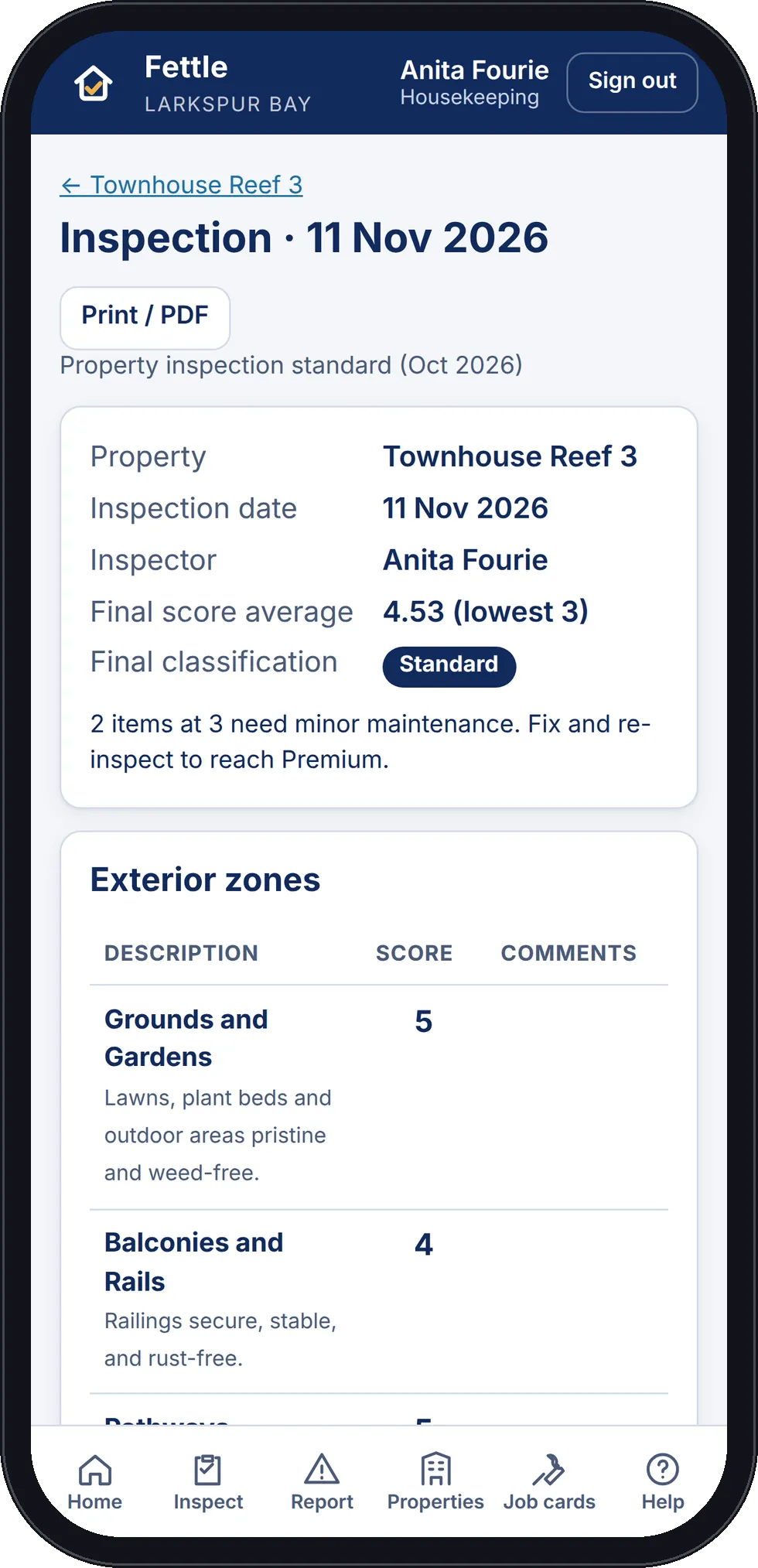
Some items are prerequisites that must all be met, such as safety equipment that is present and in date. The scores and prerequisites give each property a class, so managers and owners can see its condition.
We set up the checklist and the class rules from your own inspection document.
An example of class rules
- Premium
- An average of 4 or more, with no item below 4.
- Standard
- An average between 3 and 4.
- Failed
- Any prerequisite not met, whatever the scores.
For every role
Each person sees the screens for their own work
Managers, front of house, housekeeping, maintenance staff, outside contractors, home owners and accounts each sign in to their own screens. The accounts screen is shown in the billing section below.
Managers
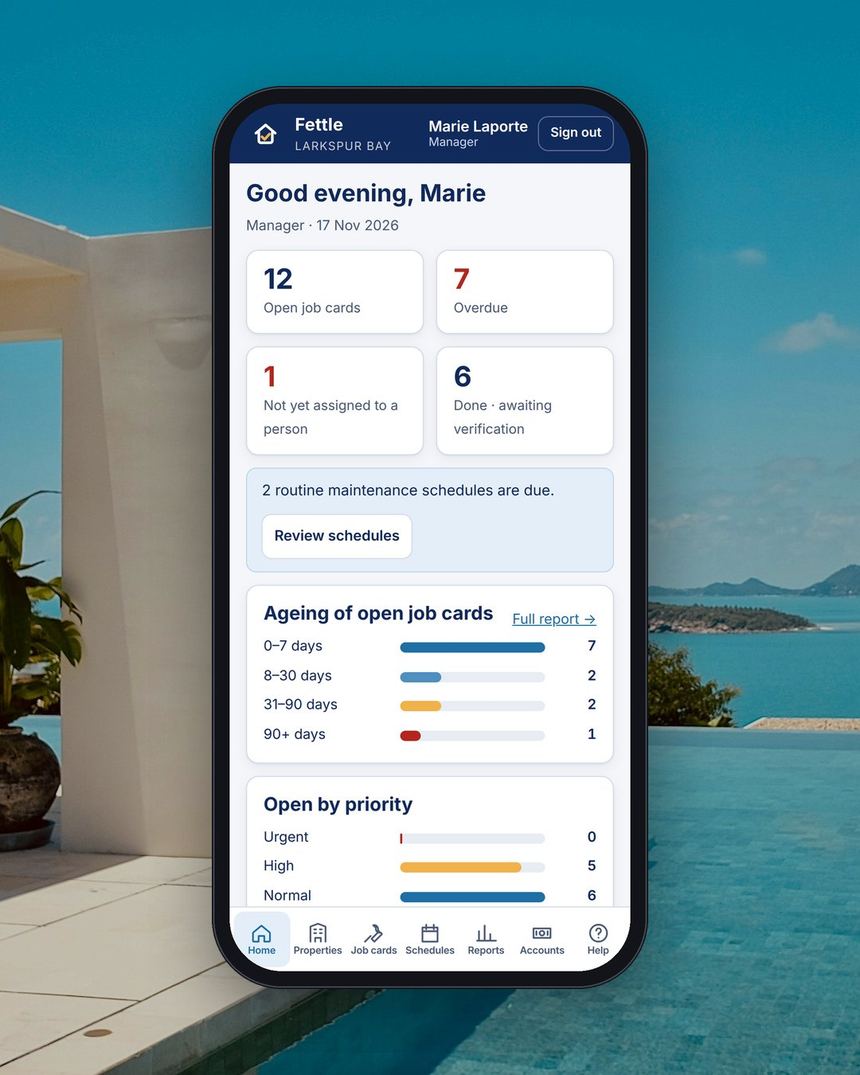
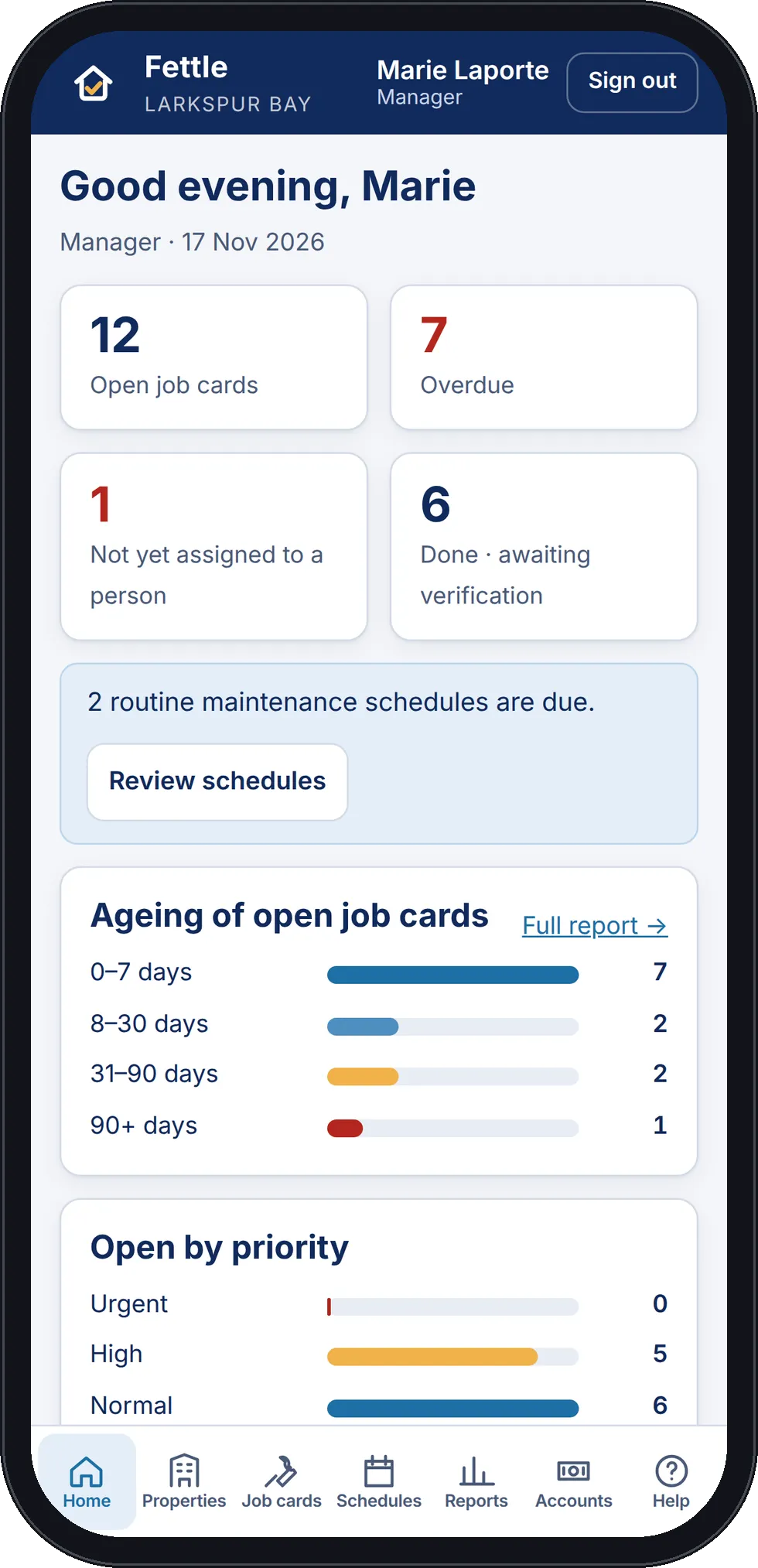
See open and overdue jobs, assign work to a named person, verify finished jobs and check the reports.
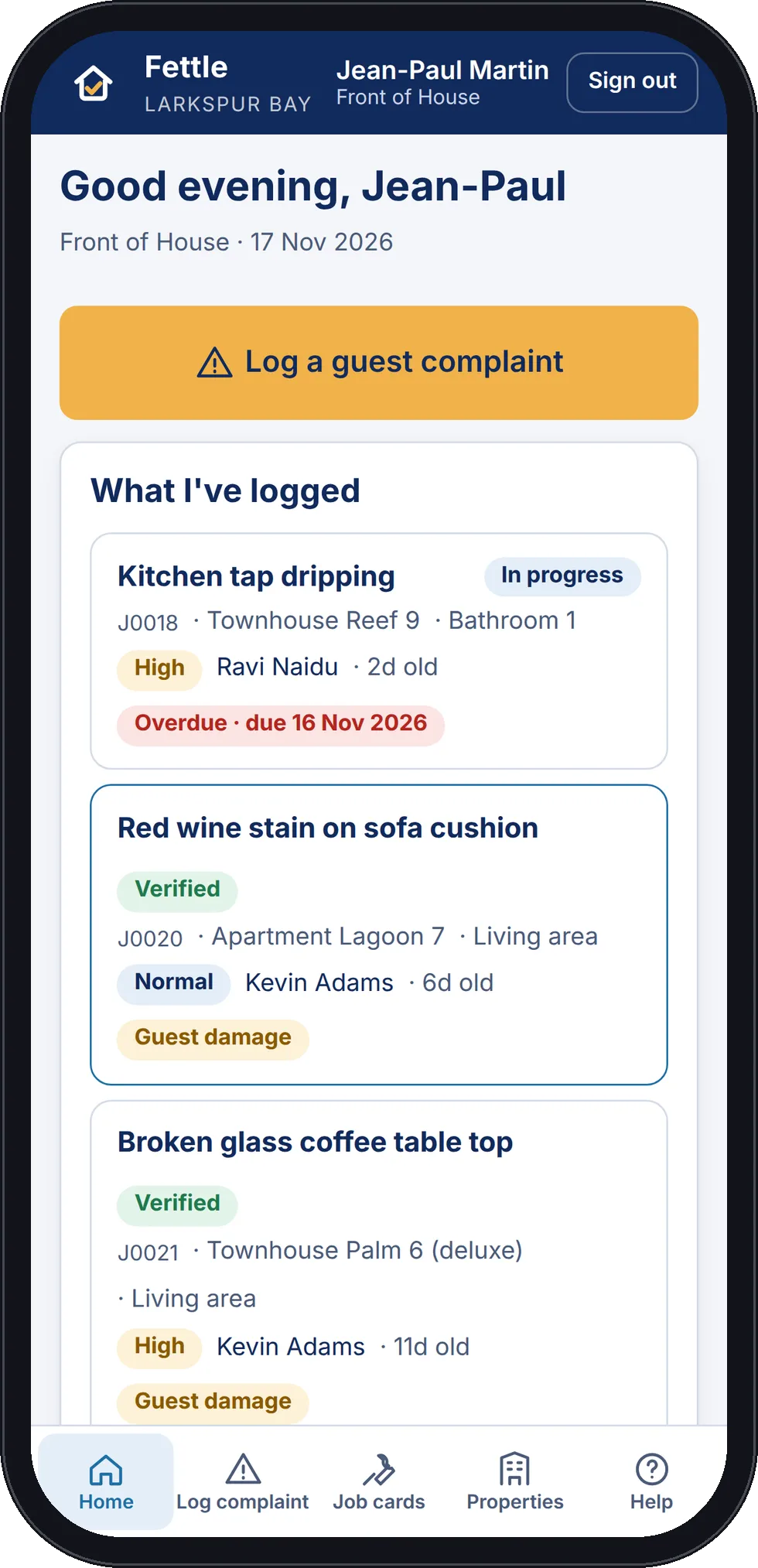
Front of house
Log a guest complaint with the guest's name and booking reference, and follow it until it is fixed.
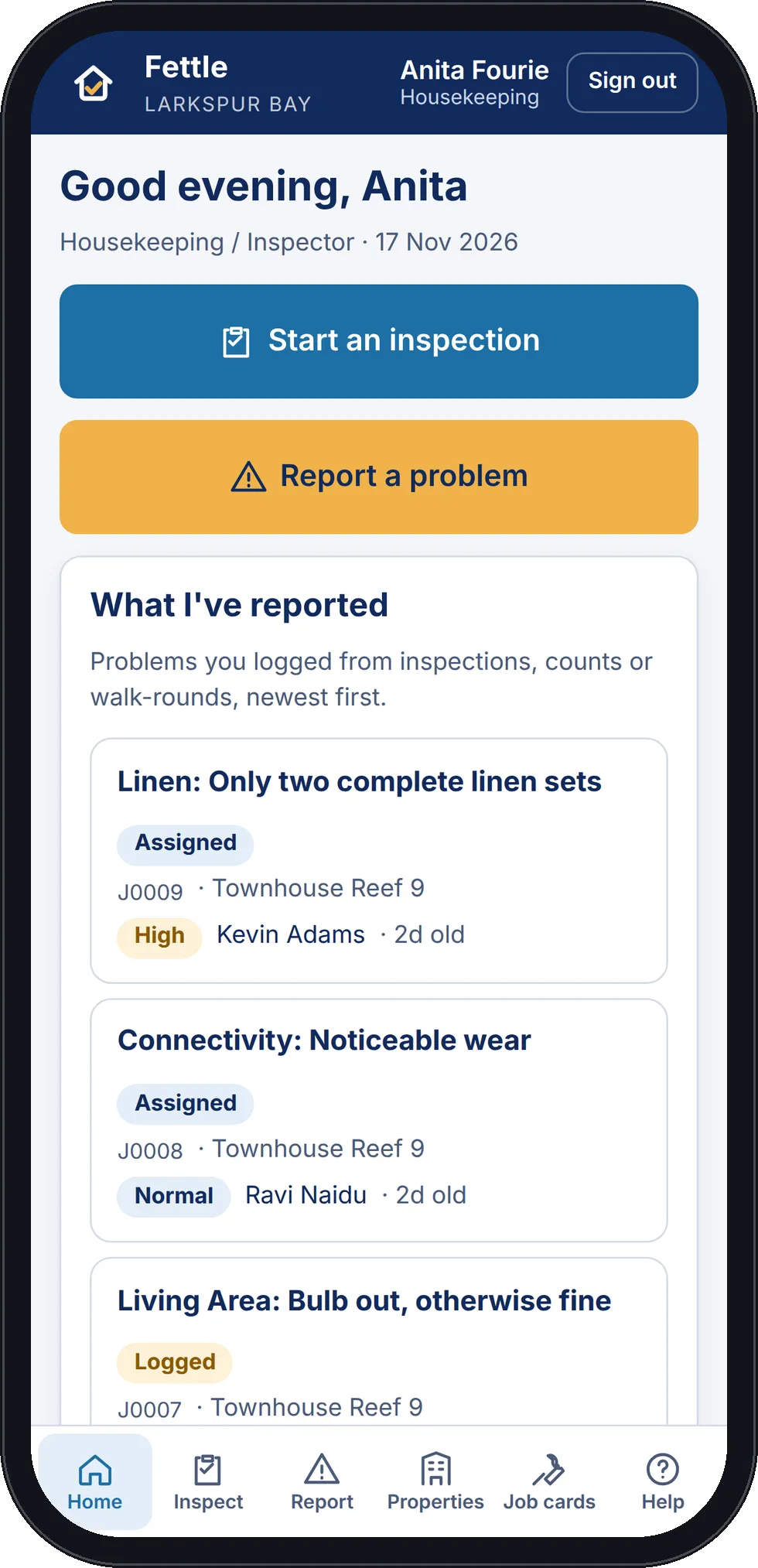
Housekeeping and inspectors
Start an inspection, report problems from walk-rounds and count the inventory in each property.
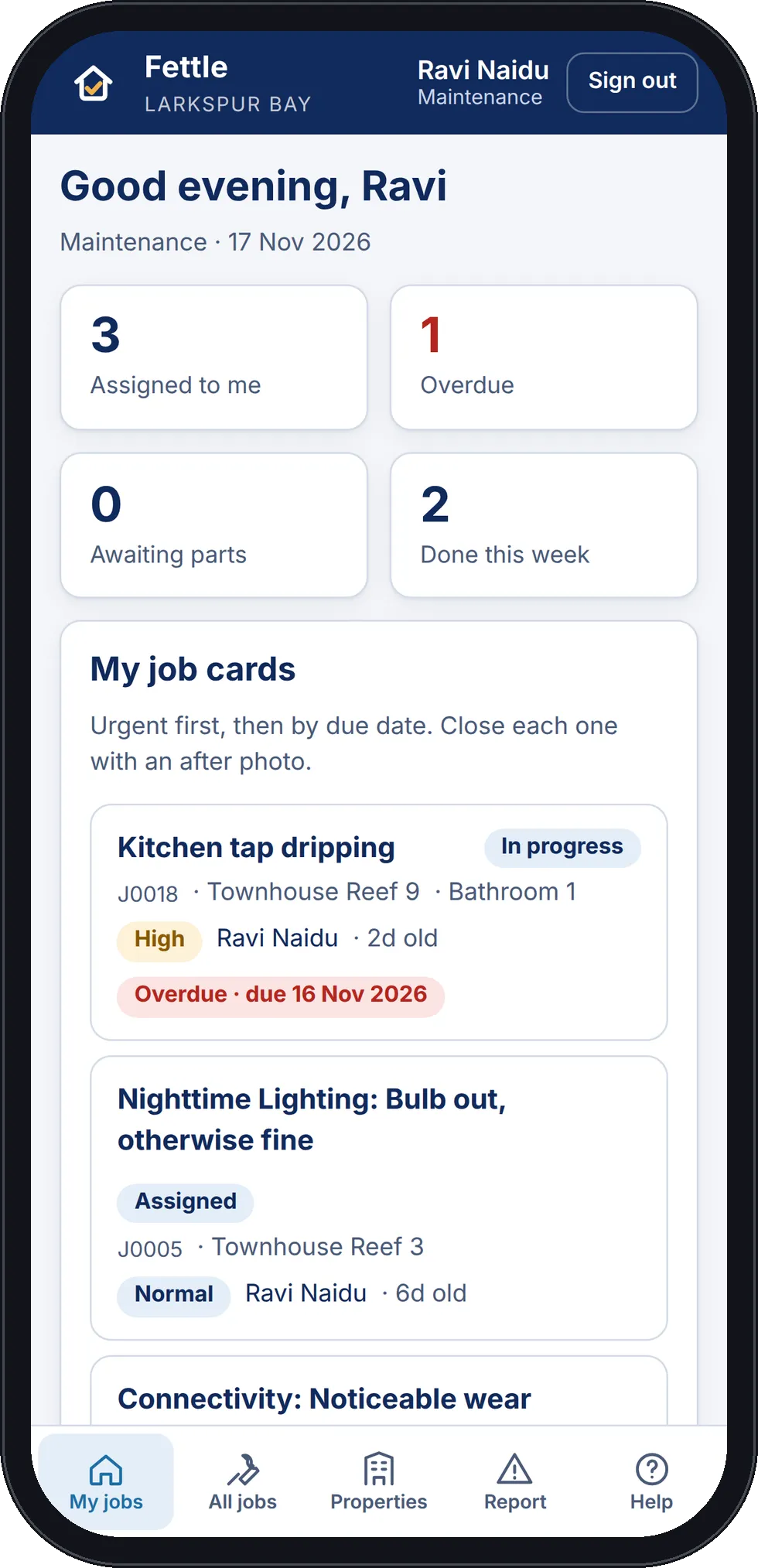
Maintenance and contractors
See the jobs assigned to you, update their status, and add photos and costs. Outside contractors see only their own jobs.
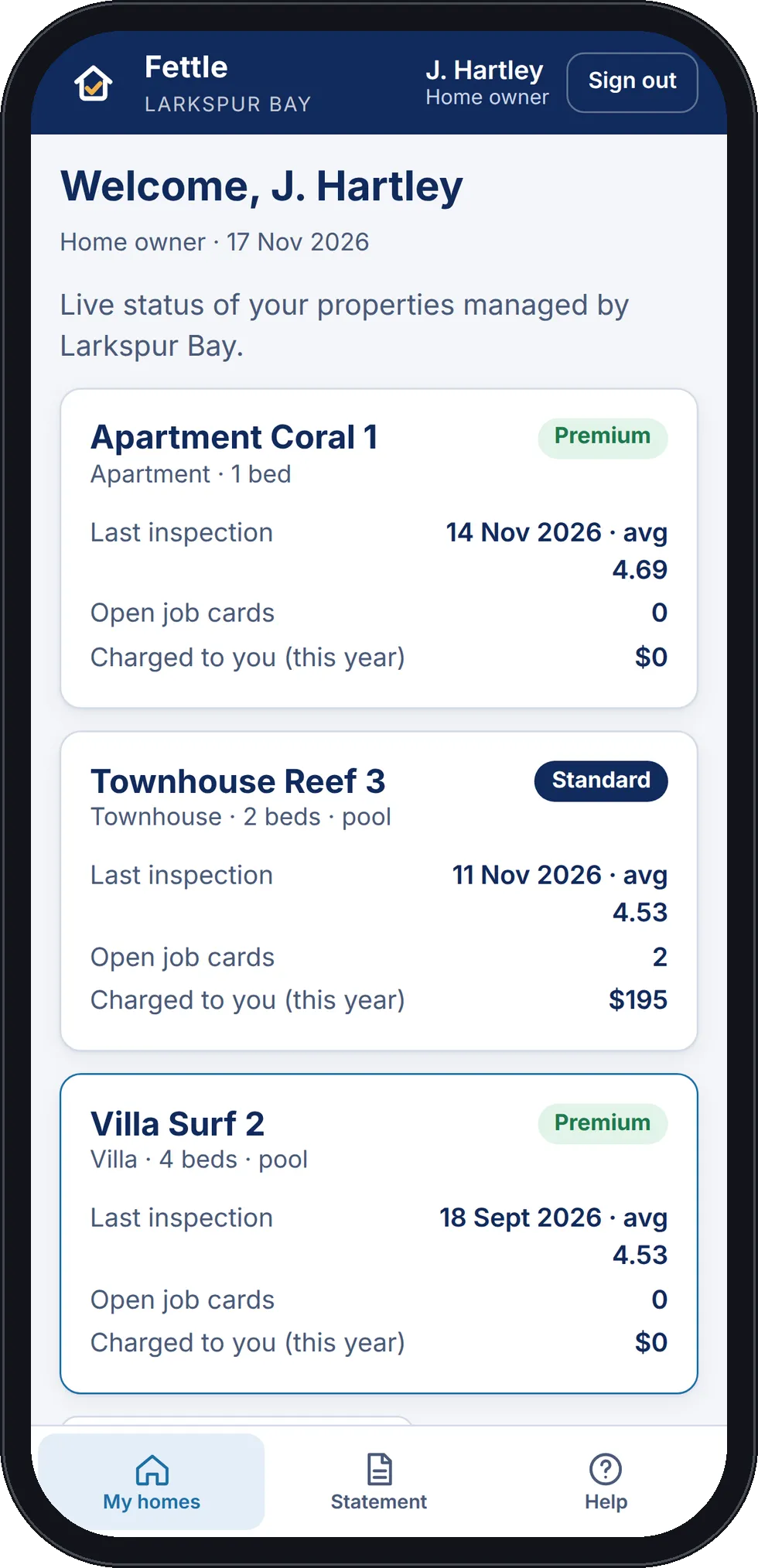
Home owners
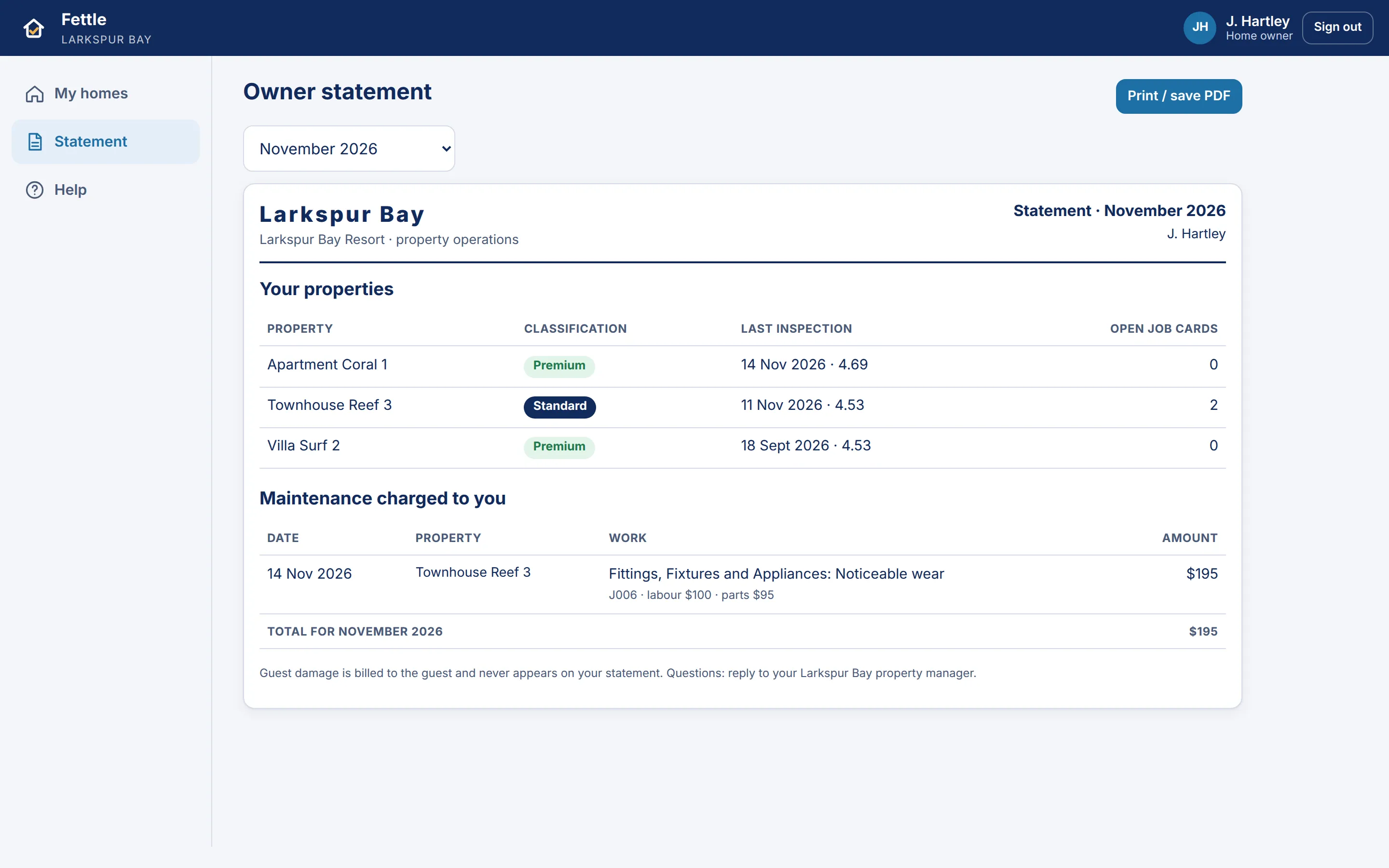
See each property's class, latest inspection, open jobs and the costs charged to you, and print a monthly statement.
Billing and owners
Every job records who pays for it
When a job is logged, it records who pays. Guest damage is billed to the guest, and routine maintenance and wear and tear go on the owner's statement. Other work can be paid by the business itself or, on an estate, by the estate levy. We set up the options that match your business.
Accounts approves the costs on each job, which are labour, parts and call-out lines. They see which jobs are ready to bill, export them as CSV and mark them as billed.
Owners sign in to see their own properties and the costs charged to them. Each month they get a statement that they can print or save as a PDF.

Reports
Reports on open jobs, costs, inspections and inventory
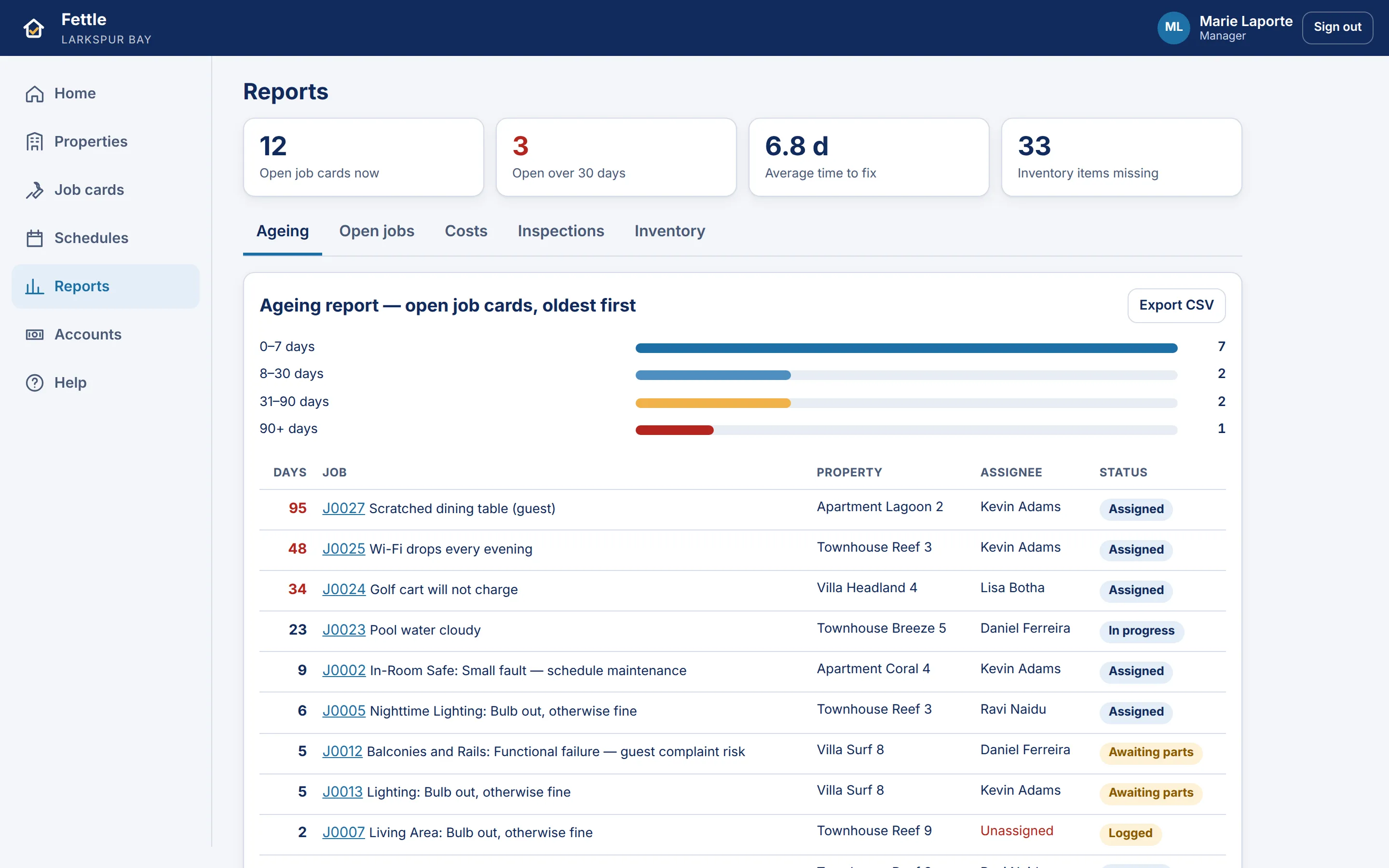
The ageing report groups open jobs by age: 0 to 7 days, 8 to 30 days, 31 to 90 days and over 90 days. The oldest jobs are listed first, with the person each one is assigned to.
Other reports cover open jobs, costs, inspection results and inventory shortfalls. Every report exports to CSV.
Phones and signal
Staff use the phone they already have, with or without signal
Android and iPhone
Fettle installs to the home screen from the web page. There is no app store download. It also works on a desktop computer.
Works without signal
Reports, inspections, photos, notes and costs are saved on the phone and sent when the signal returns.
Help in the app
Each role has its own guides in the app. Managers can upload documents and choose which roles see them.
Access and data
Each role sees only its own work
Checked on the server
The server checks what each role may see. Contractors see only their own jobs and owners only their own properties, even if they change a link.
Photos are not public
Job and inspection photos are not public links. A person must be signed in to see them.
Simple sign-in
Staff sign in with a password or with a sign-in code sent to their email address.
Hosted by CapeFrisco
We build Fettle and host it on our own servers.
FAQ
Questions about Fettle
Do my contractors need their own login?
Can owners see everything?
Does it need an app store?
What if there is no signal?
Can it use our inspection checklist?
Who adds properties and staff?
Does it connect to our booking or accounting system?
Ask for a demo of Fettle
Tell us about your properties and how your team handles maintenance today, and we will arrange a demo.